Follow six steps to import garment photos, approve white backgrounds, generate scenes, compare and rework results, then export reviewed images by SKU.
Import womenswear → Approve product images → Generate on-model scenes → Review and rework → Export by SKU
Sign in and prepare hanging or flat-lay garment references. Generation and retries consume credits according to the model; your available balance is shown in the header. Uploading does not automatically generate images.
Screenshots show the current workspace with real examples generated using the configured Sunburst model. Open screenshots at full size, or inspect the references and full results below.
STEP 01 / 06
Group your product references and plan your scenes.
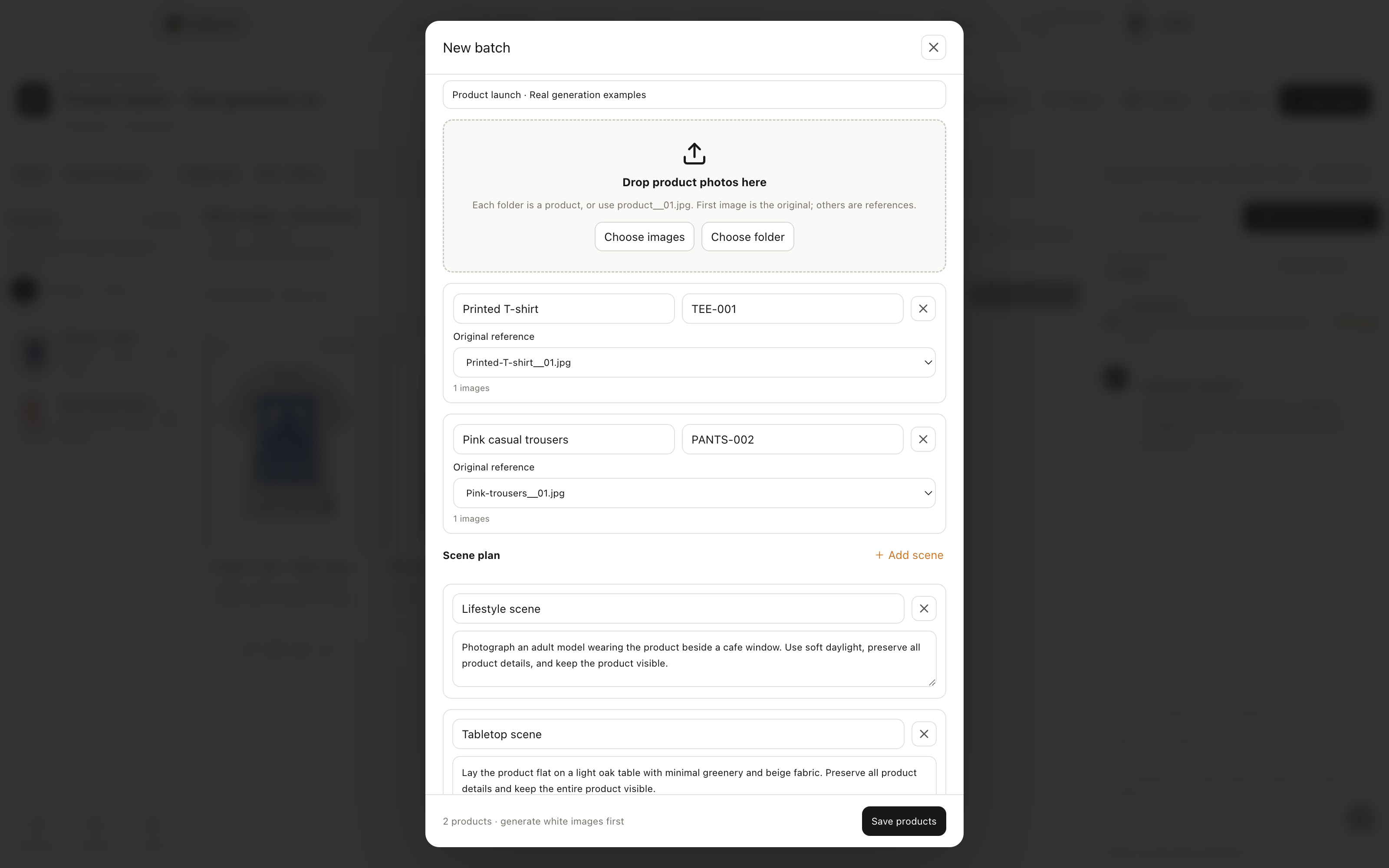
Use JPG, PNG, or WEBP up to 20MB per image. Start generation separately after uploading.
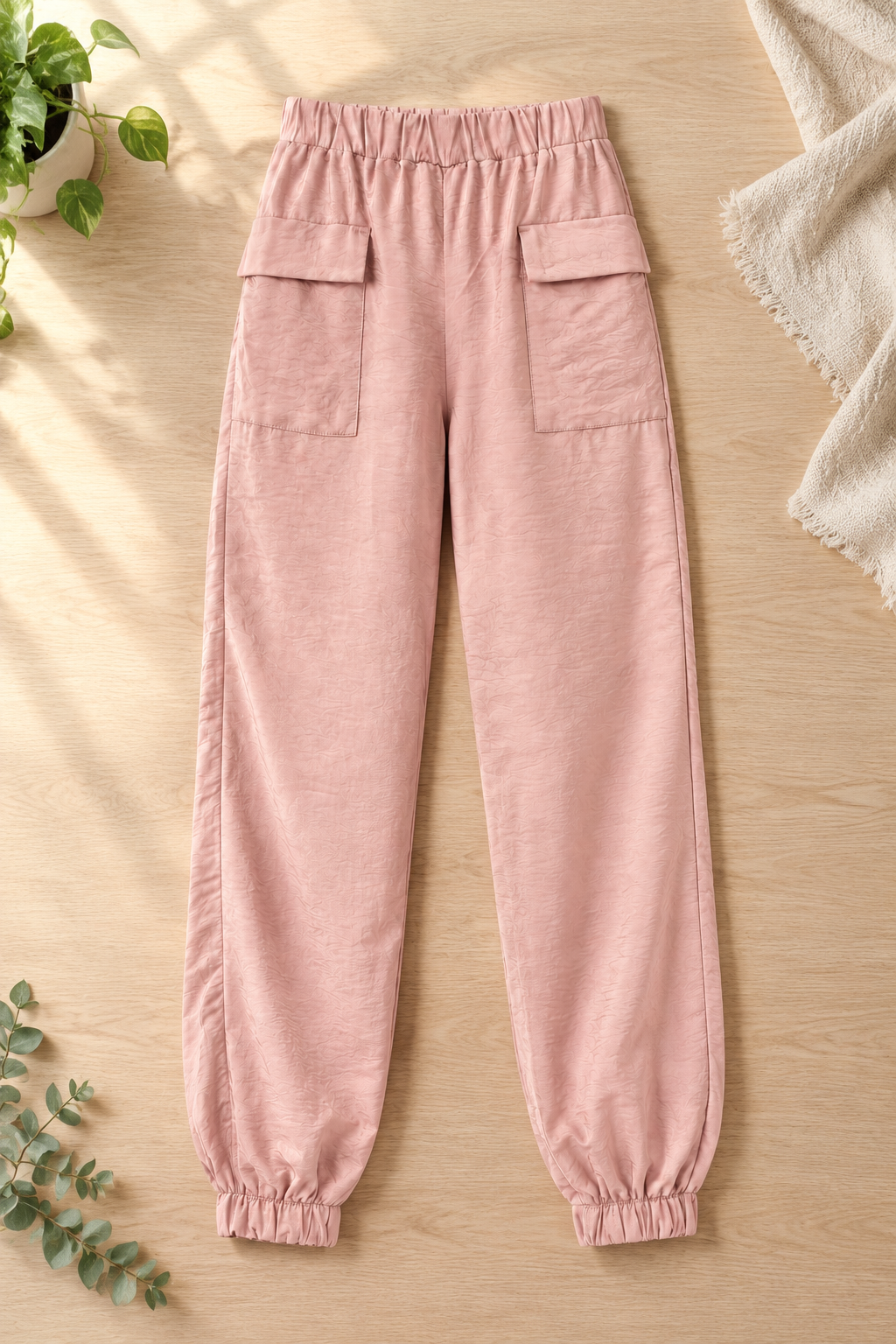
These six results were generated with the configured Sunburst model. White images use the original references; scenes use the generated white images. Select any image to inspect the full file. Compare product details before approving your own results.
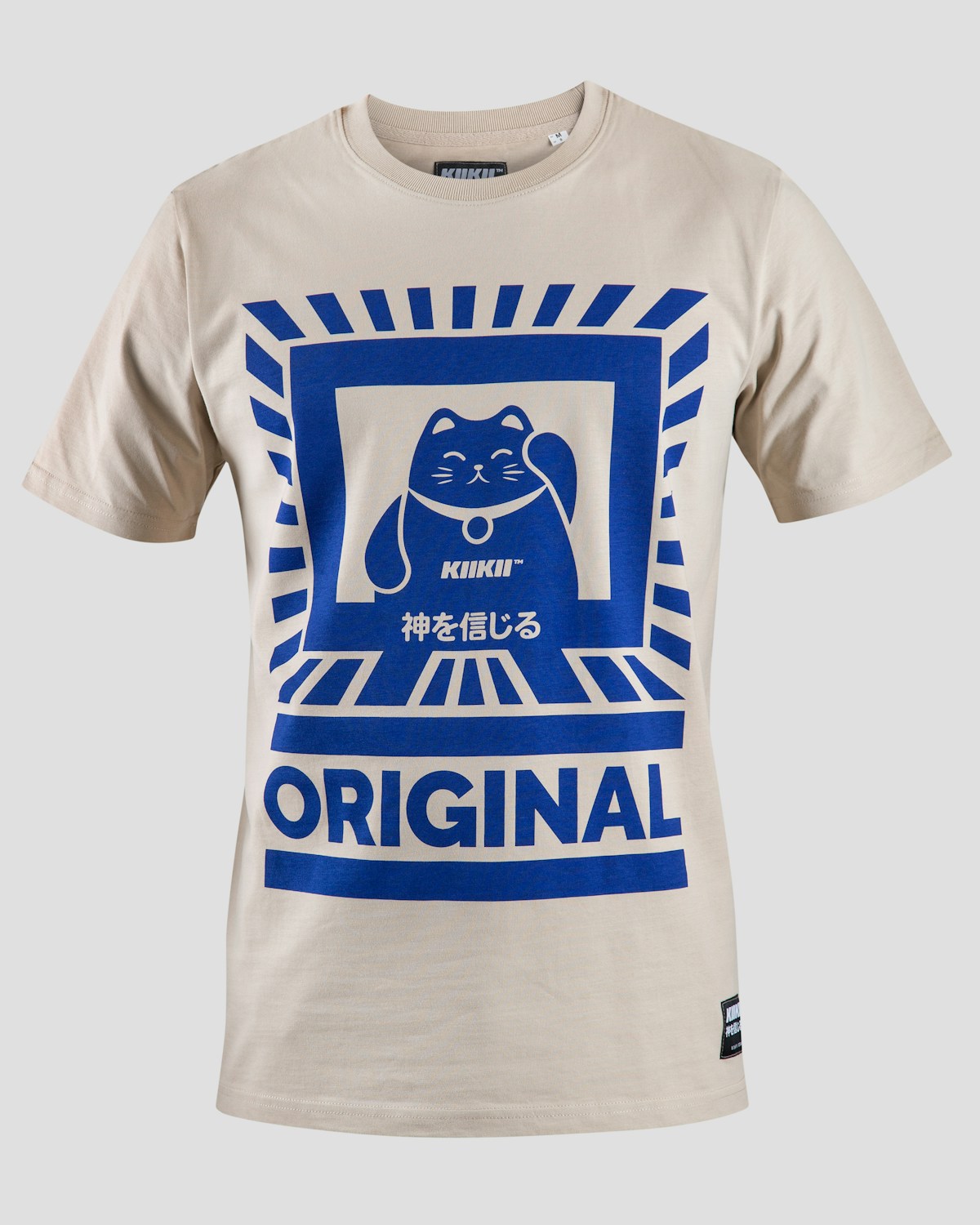
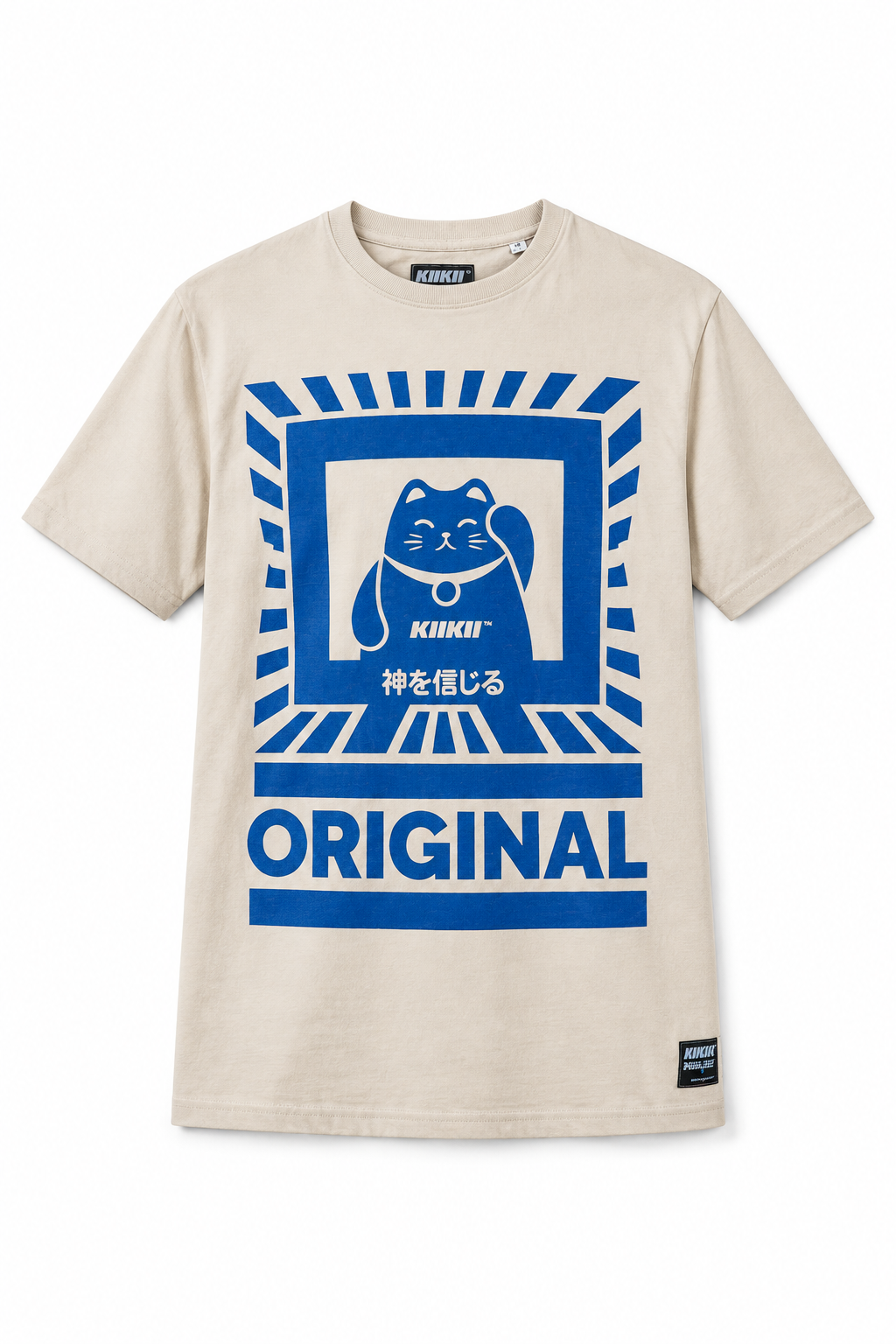
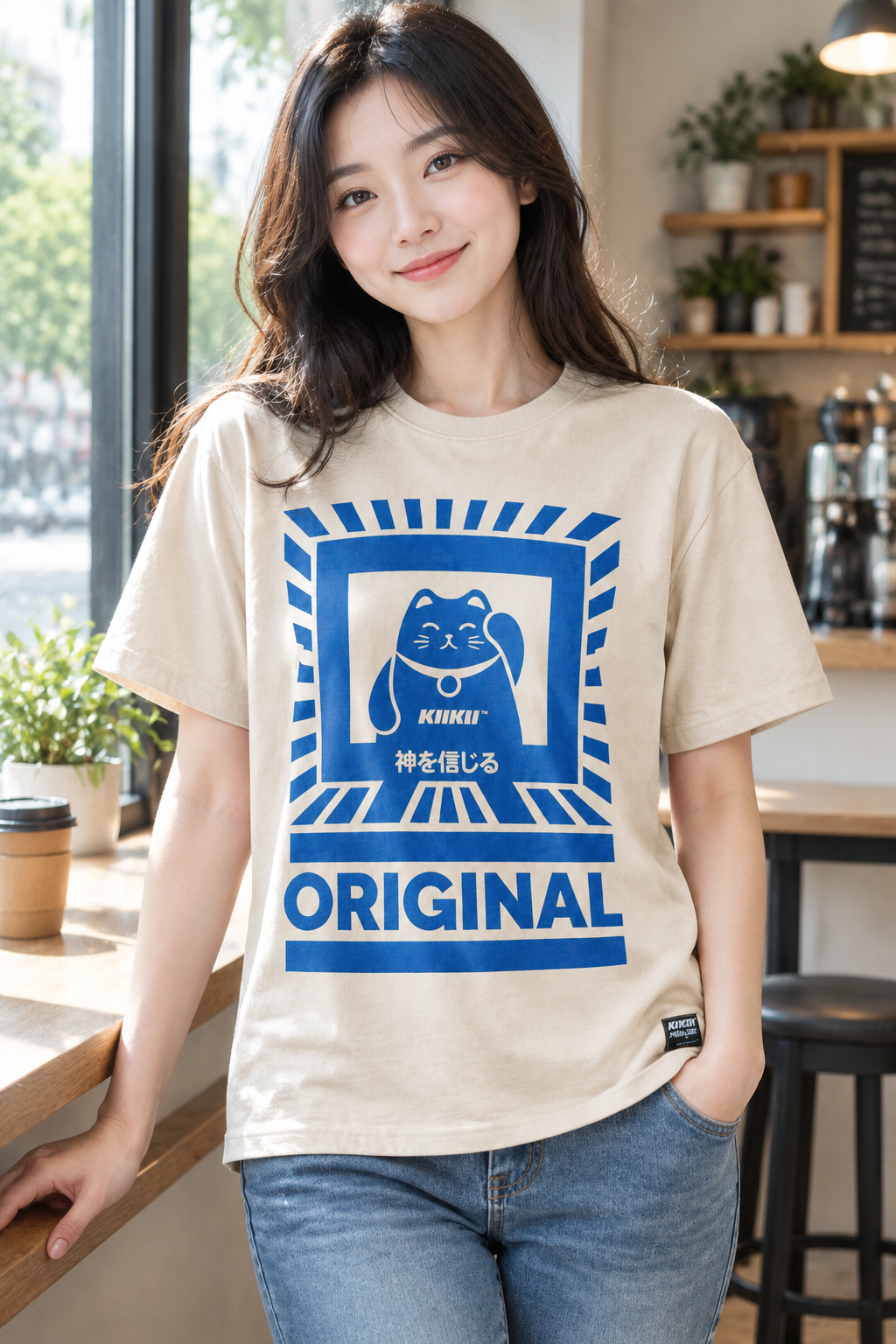
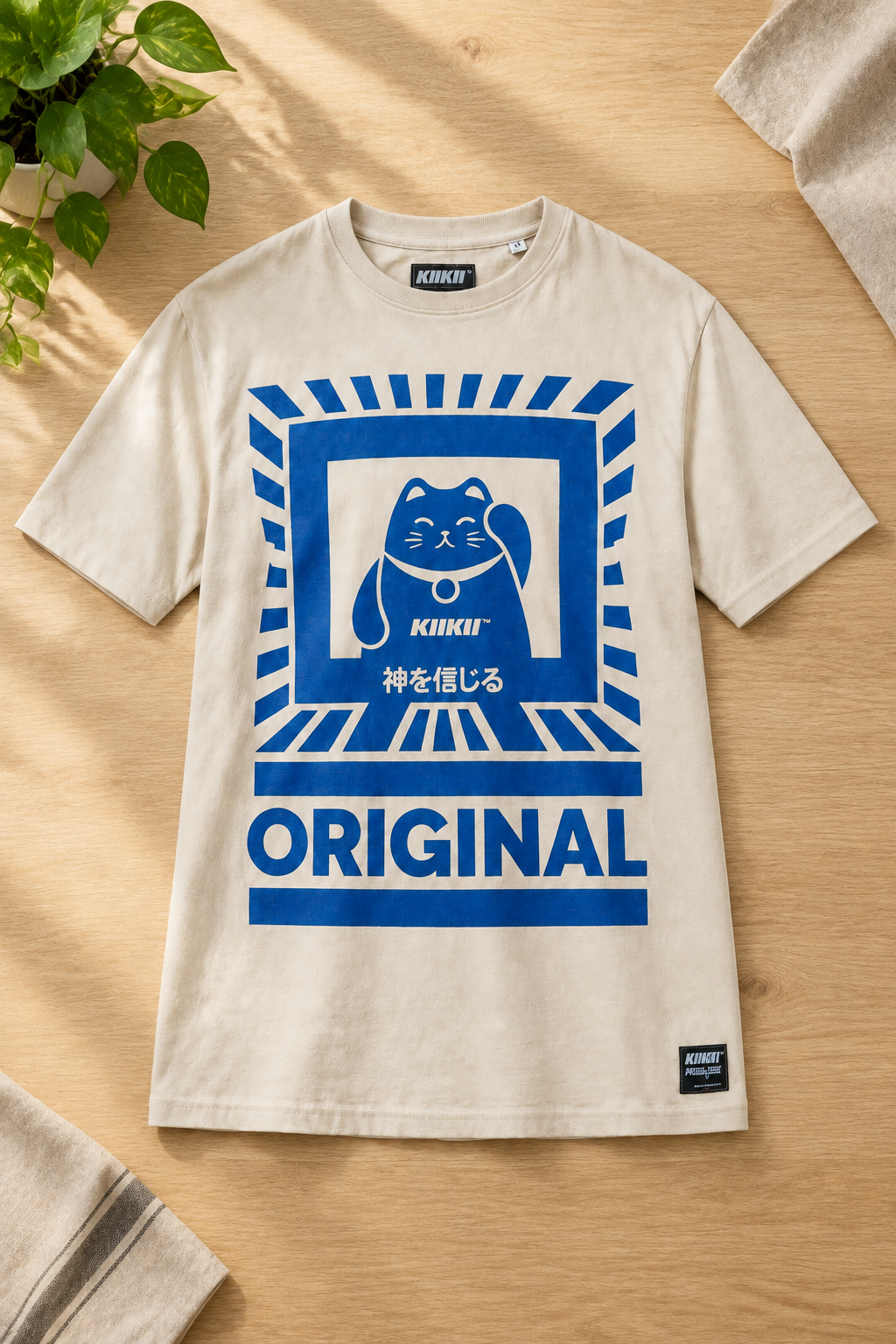
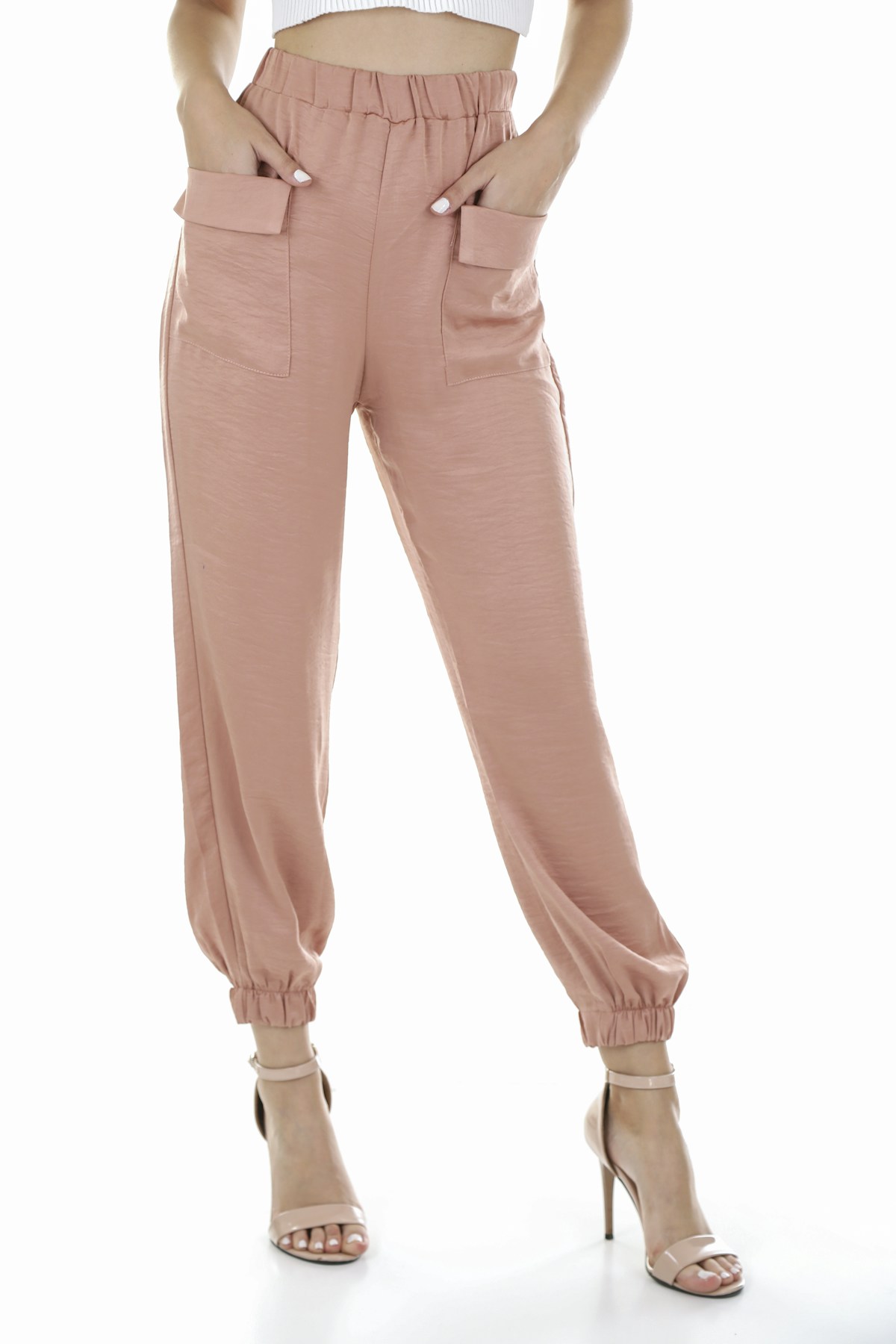
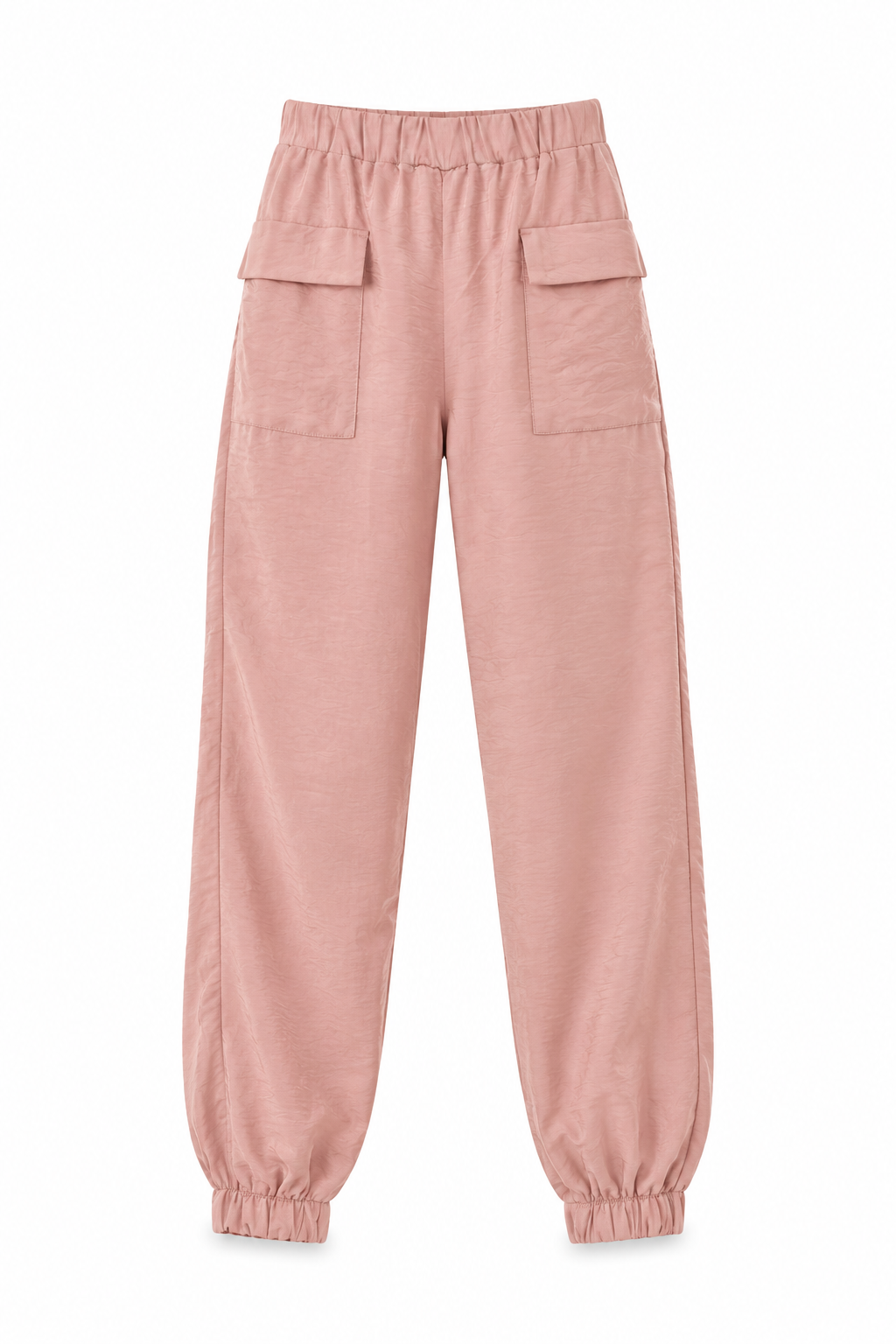
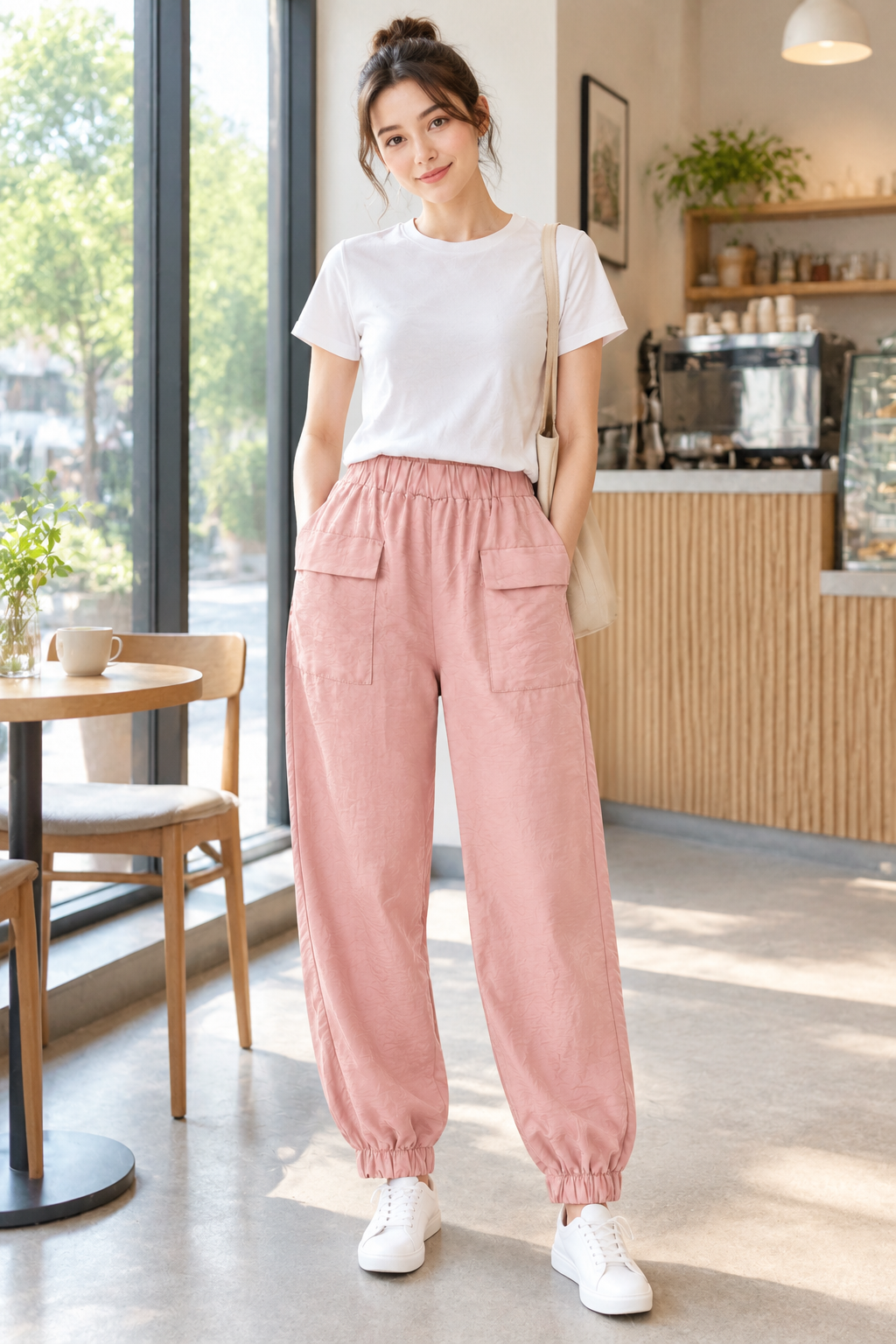
Approve a white image for that product in the first stage. Any running task must also finish before it can be retried.
Selection chooses targets. Approval marks a result as reviewed and eligible for export. Generation creates a new result and consumes credits. These are separate actions.
Check its approval and expiry, and whether another version in the same group was approved later. Only the most recently approved valid version of each group is exported.
 FaFaFa AI